Watching Key Production Information With Monitor
The Monitor feature in Hub is similar to the stand-alone Monitor application that is part of the PatronBase system. This version runs within Hub, and features a dynamic tile on the Hub home page.
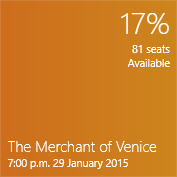
The tile will show key information for a production or performance. The specific details will depend on how you configure Monitor.
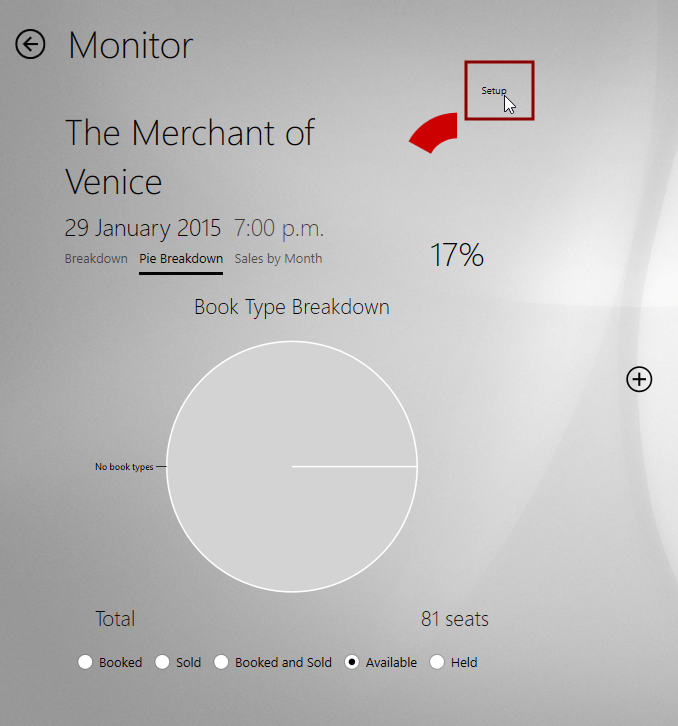
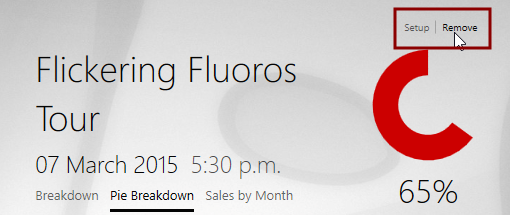
When you click the tile, a detail view is revealed. This is also where the tool is configured. The Setup button is normally invisible, but moving the mouse pointer or touching around the area just above the small graph to the right of the production name will reveal the word Setup. Click Setup to open the configuration window.
The Setup window allows the customisation of the key production information being presented.
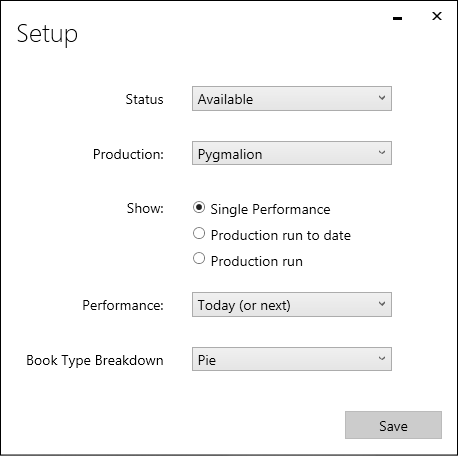
Status selects from the options that are also at the bottom of the detail view: Booked, Sold, Booked and Sold, Available, and Held.
Production provides a list of the current productions in the system.
Show lets you choose to display data relating to a Single Performance, the Production run to date, or the whole Production run.
Performance is used when Show > Single Performance is selected, and lists the available performances by date and time, along with a Today (or next) option.
Book Type Breakdown configures the main part of the detail view, and has options Textual List, Pie and Sales by Month.
Click Save to view the results of your selections:
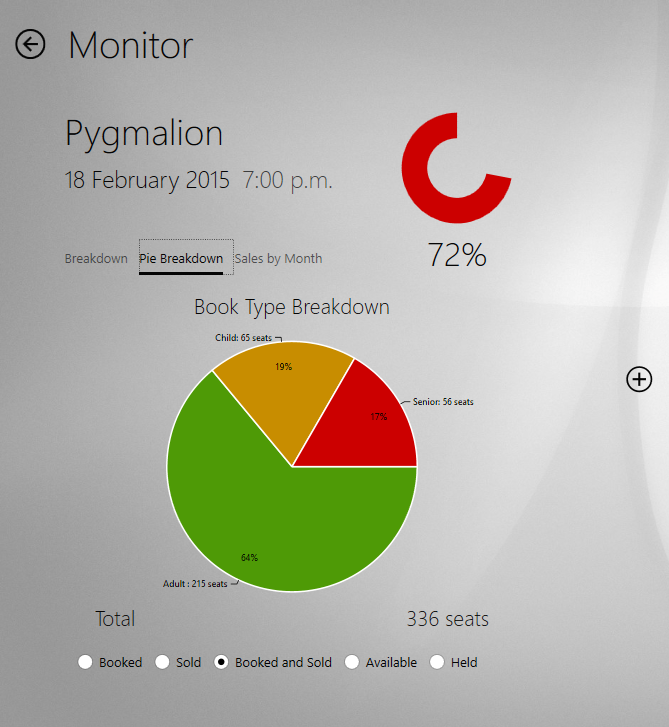
You can make some changes directly in the detail view by selecting from the options above or below the Book Type Breakdown.
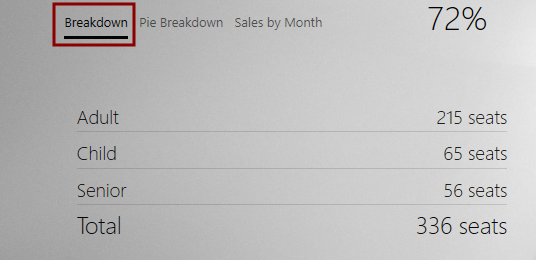
If the Breakdown button is selected, a textual list of the percentages sold for each book type is displayed.
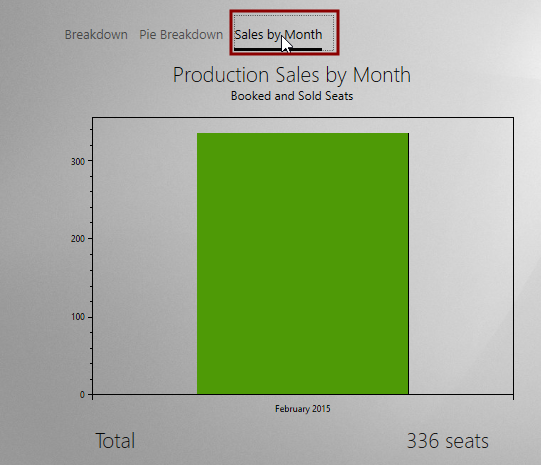
If Sales by Month is selected, a bar chart shows the relative number of seat sales per month.
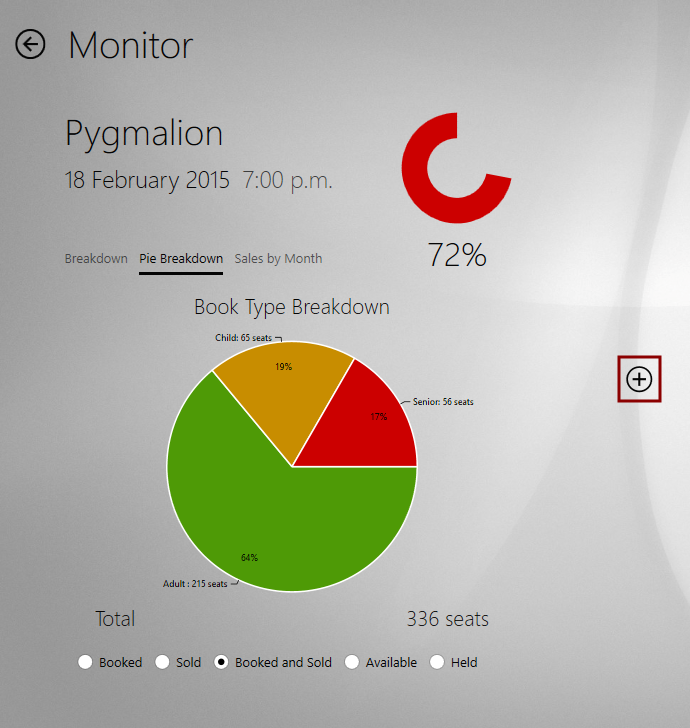
It is possible to view information on more than one production or performance. Click the button that looks like a plus-in-a-circle. Select Production Monitor or Sales by Month. Another Setup window will appear.
Once you have made your selections in the Setup window and clicked Save, another production detail view appears:
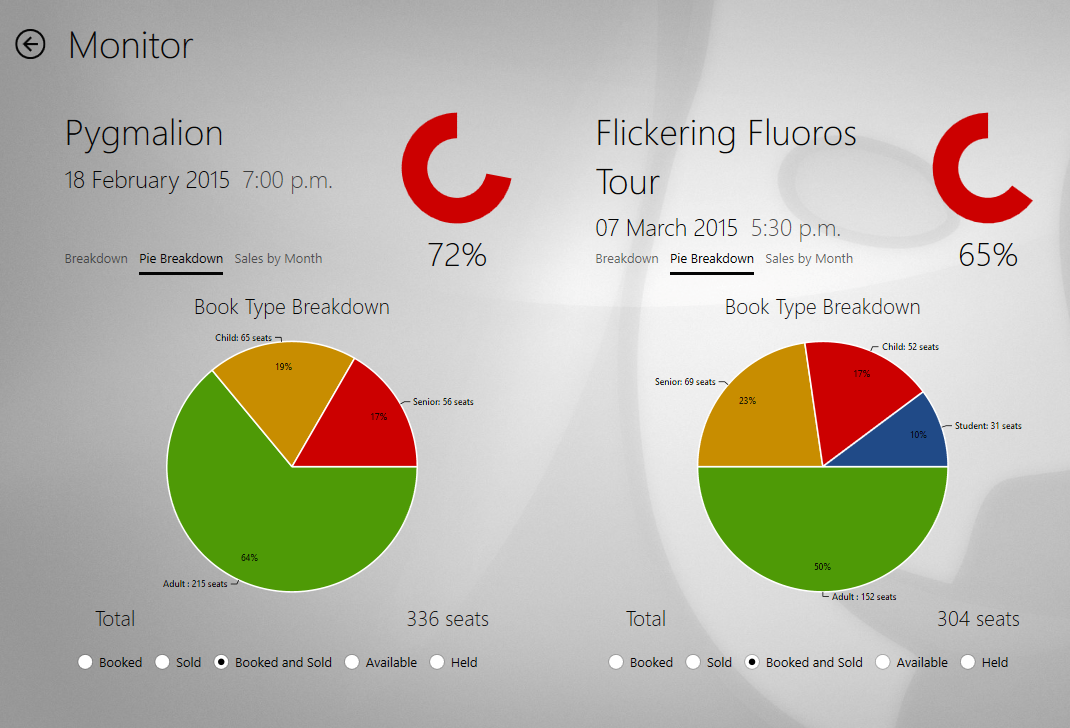
You can remove one of these detail views by hovering the mouse or touching the screen just above the small graph to the right of the production name, revealing the Setup and Remove buttons, then selecting the Remove button.
To return to the Hub home screen, click the left pointing arrow at the top left corner of the screen.
If you have configured Monitor to show more than one view of production or performance data, the tile will change every few seconds. It will cycle through each selected performance or production, displaying summary data for your chosen configuration.