Using the Venue Manager to See What's On
Venue Manager is a read-only tile that displays information about what is on in the various venues. It appears as a tile on the WebHub home screen, with the icon showing a theatre building.
Click the tile to open the Venue Manager app.
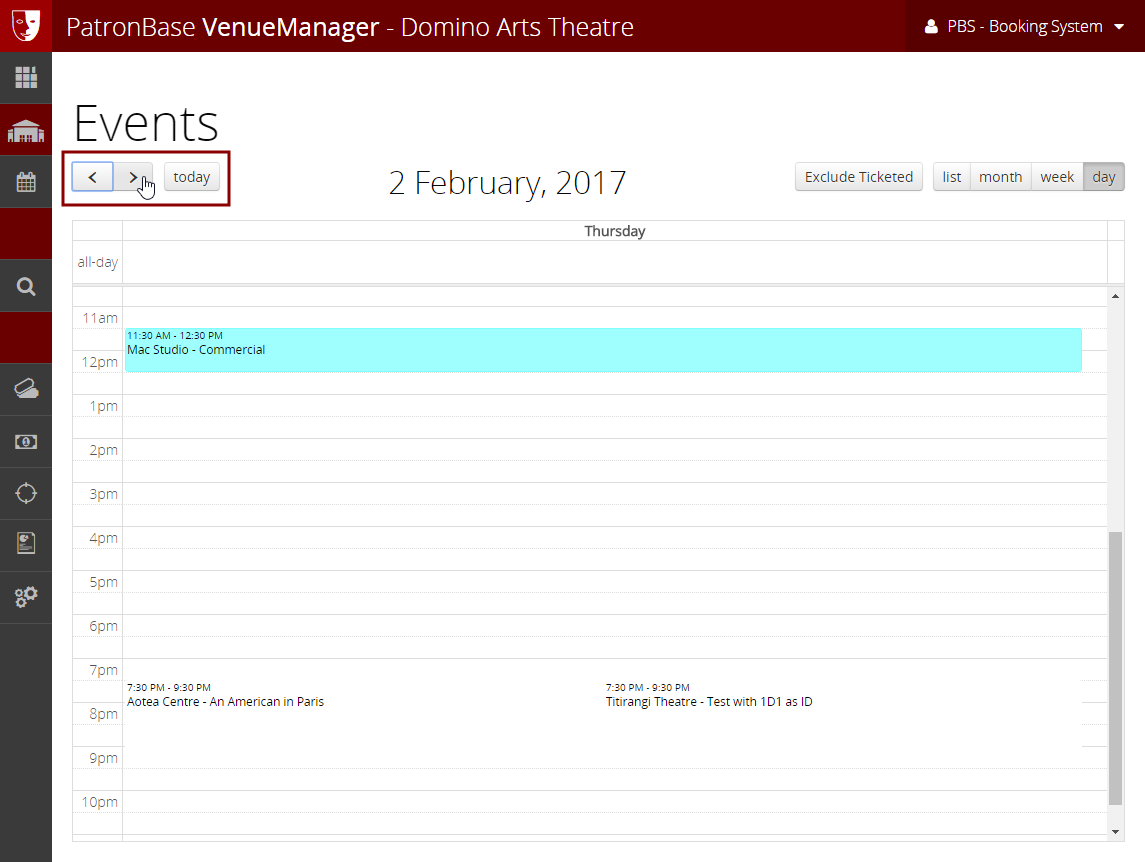
The Events display shows you all the scheduled events in a calendar view. Buttons let you select from list, month, week and day options. The month display is shown by default.
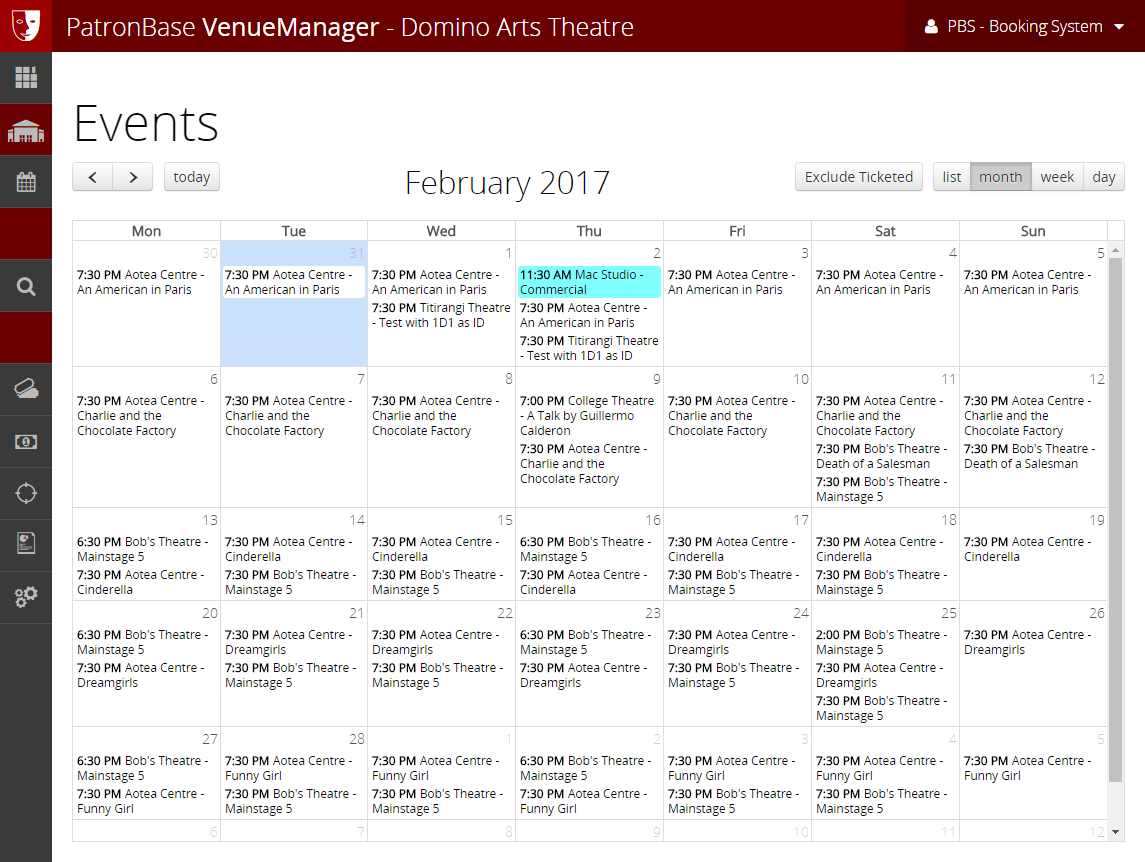
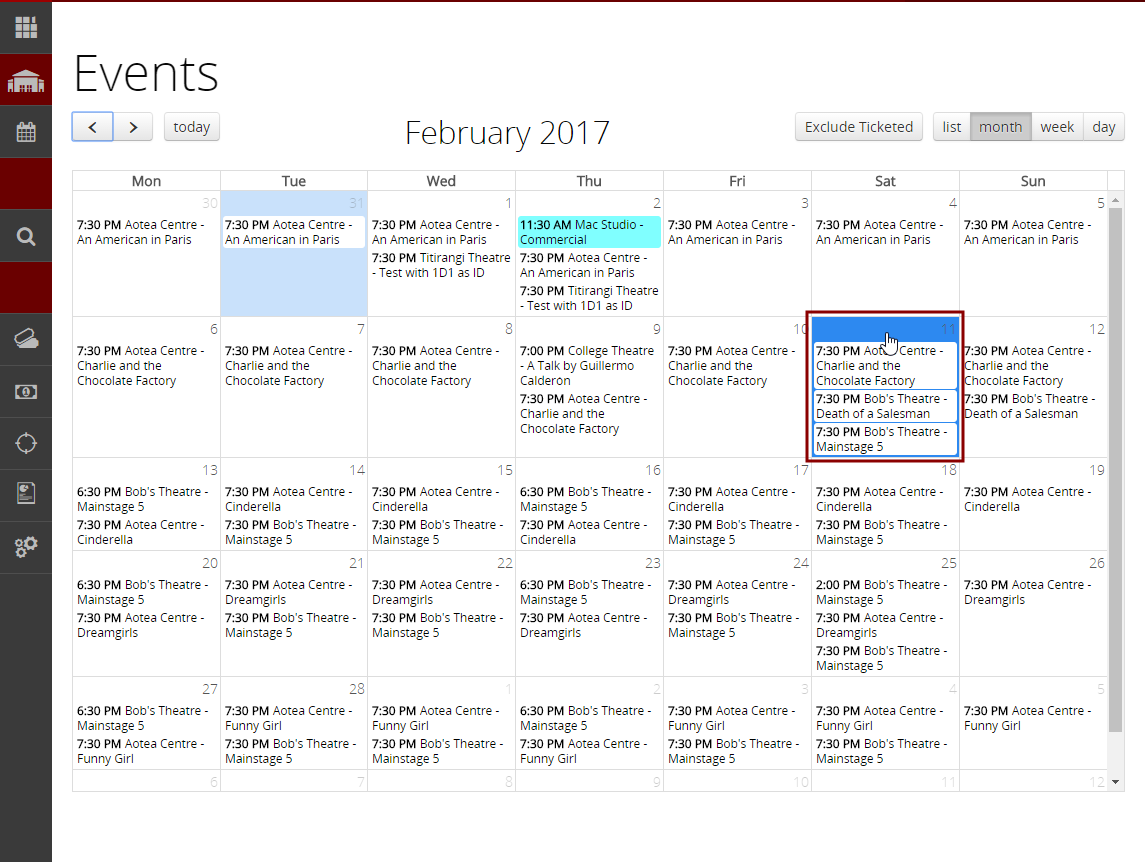
In the month view, hover the mouse over a particular day and when it turns blue, you can click through to the day view for that selected day.
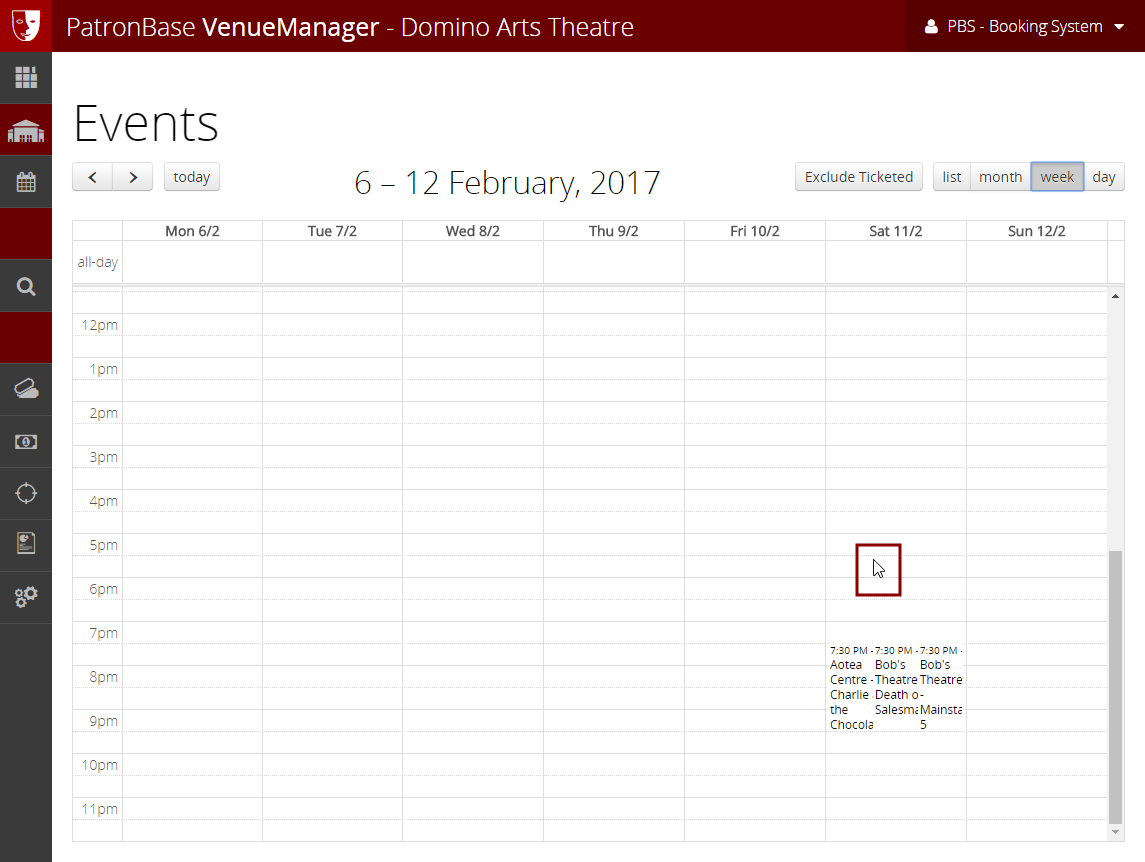
The week view also allows you to click through to a particular day. Wherever the mouse pointer is an arrow, you can click and switch to the day view.
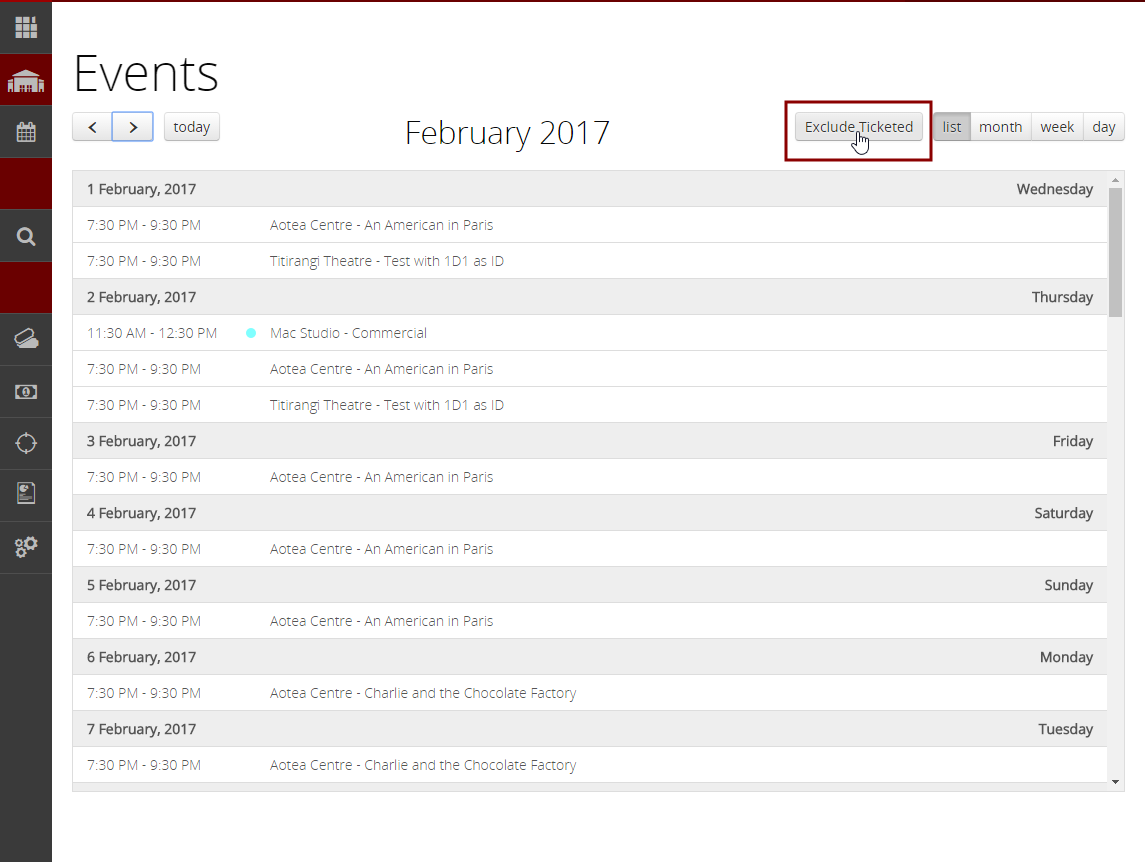
Select the Exclude Ticketed button to hide all the ticketed events leaving only the unticketed events on the calendar. When you do this, the button changes to read Include Ticketed, which switches the view back to show the ticketed events.
The <, > and today buttons are used to navigate the calendar. The < button takes you back one period of time as currently selected, and > takes you forward one period. The today button takes you to the period that includes the current date.